> For the complete documentation index, see [llms.txt](https://docs.pavothemes.com/edudeme/llms.txt). Markdown versions of documentation pages are available by appending `.md` to page URLs; this page is available as [Markdown](https://docs.pavothemes.com/edudeme/setting/theme-builder.md).
# Theme Builder
**Step 1** - From the admin Dashboard, navigate to **Theme Builder**.
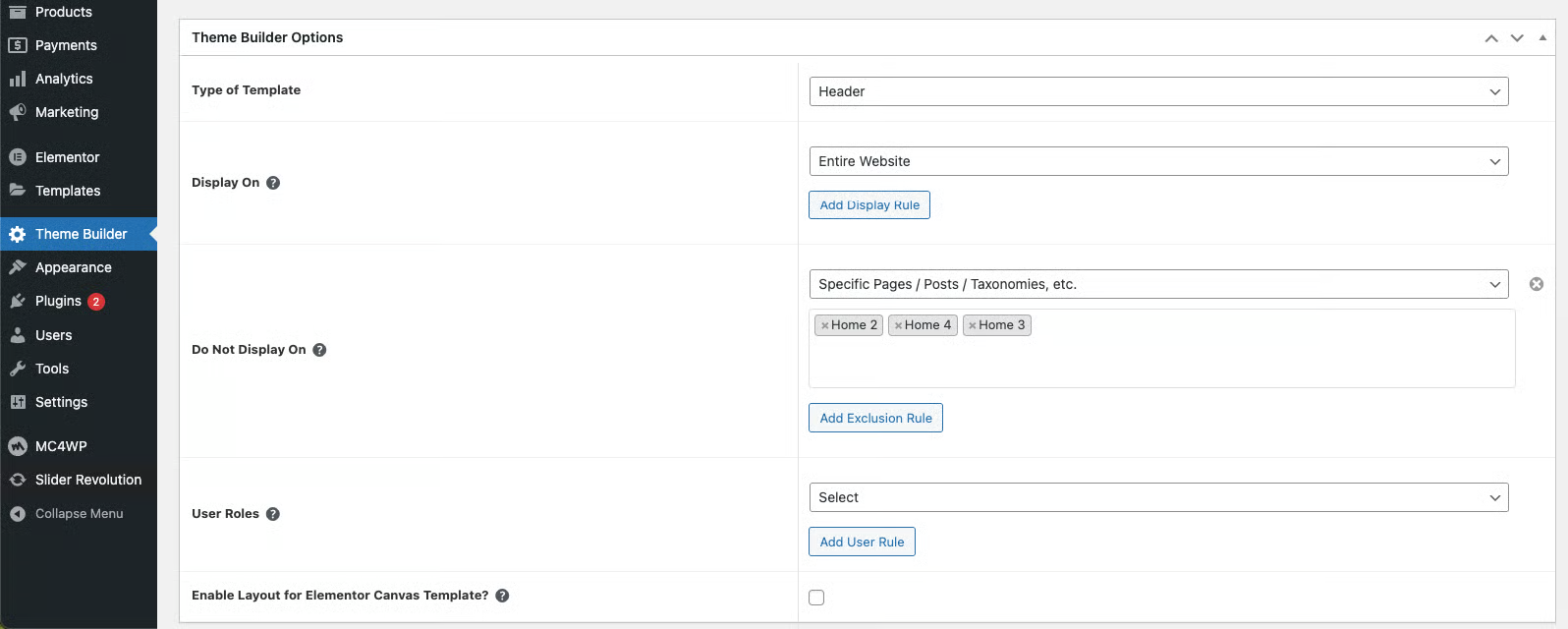
**Step 2** - Click to **Add New** to require add a new theme builder is the display, select type of template, please input the name of your theme builder, select Display On to display and Select User Roles to not show in desired sections and click **Publish**.
**Step 3** - Using **Edit with Elementor** then add an element to your Theme Builder.
**Step 4** - Drag or drop an element that you want to build your theme builder style with the unlimited layout.
**Note:** If you choose the type "Custom Block", to use it you need to copy its Shortcode and paste it where you want it to display.