> For the complete documentation index, see [llms.txt](https://docs.pavothemes.com/edudeme/llms.txt). Markdown versions of documentation pages are available by appending `.md` to page URLs; this page is available as [Markdown](https://docs.pavothemes.com/edudeme/content-management/set-up-header.md).
# Set up Header
By bringing the power of the Elementor editor to the header/footer areas, you can design them any way you like, full-width included, and be able to complete projects faster than ever. You can also save header and footer templates, and reuse them on any other project.
If you are beating yourself up right now for all the hours you lost in the past over your header design, we share your feelings. From now on, with the help of Theme Builder, things are going to be much faster.
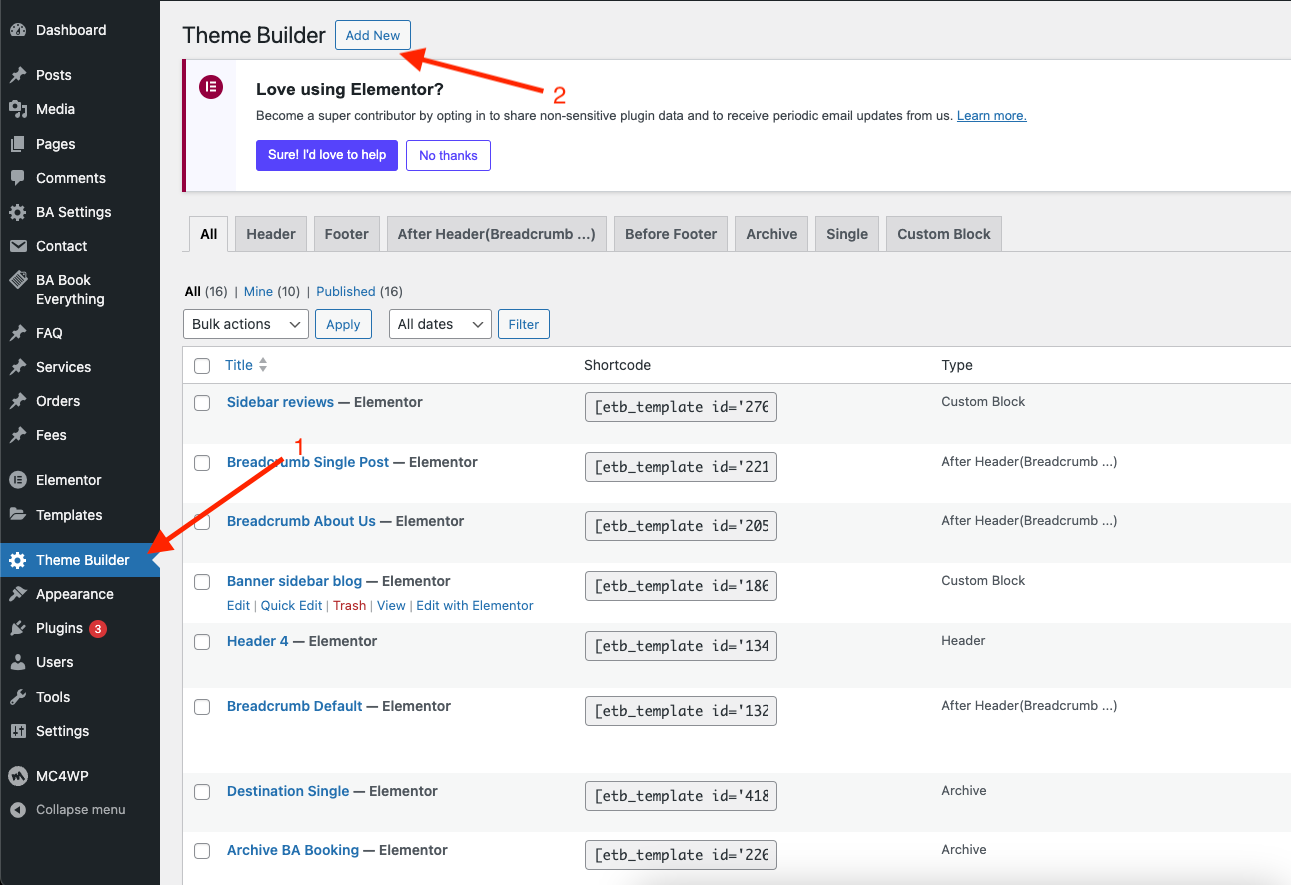
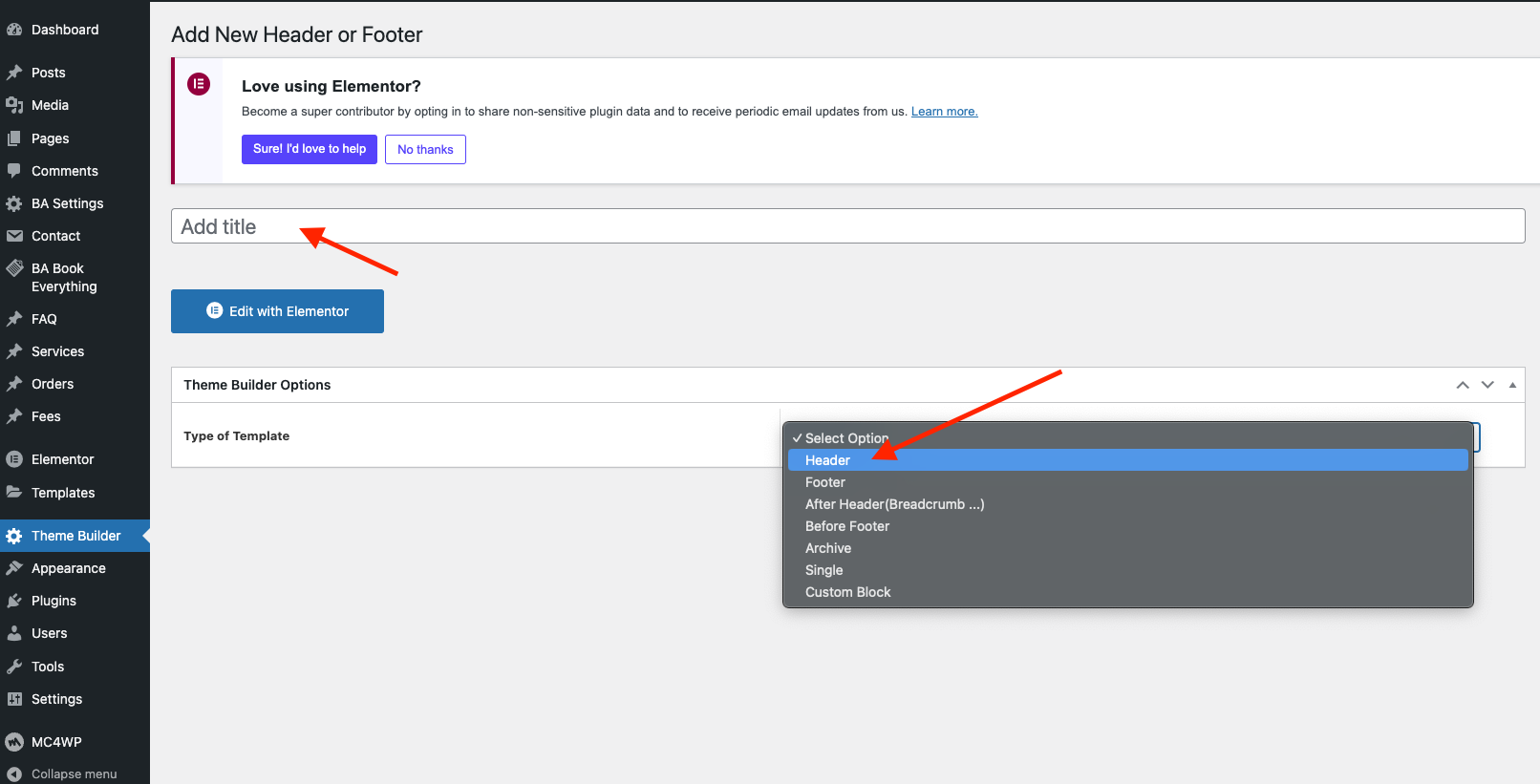
**Step 1:** Go to WordPress Dashboard > Theme Builder > Add new > Edit with Elementor
**Step 2:** Logo
**Step 3:** Menu
**Step 4:** Header Group
**Step 5:** Menu Canvas Mobile.
**Step 6:** Edit Button
**Step 7:** Edit icon list
**Step 8:** Edit social icon
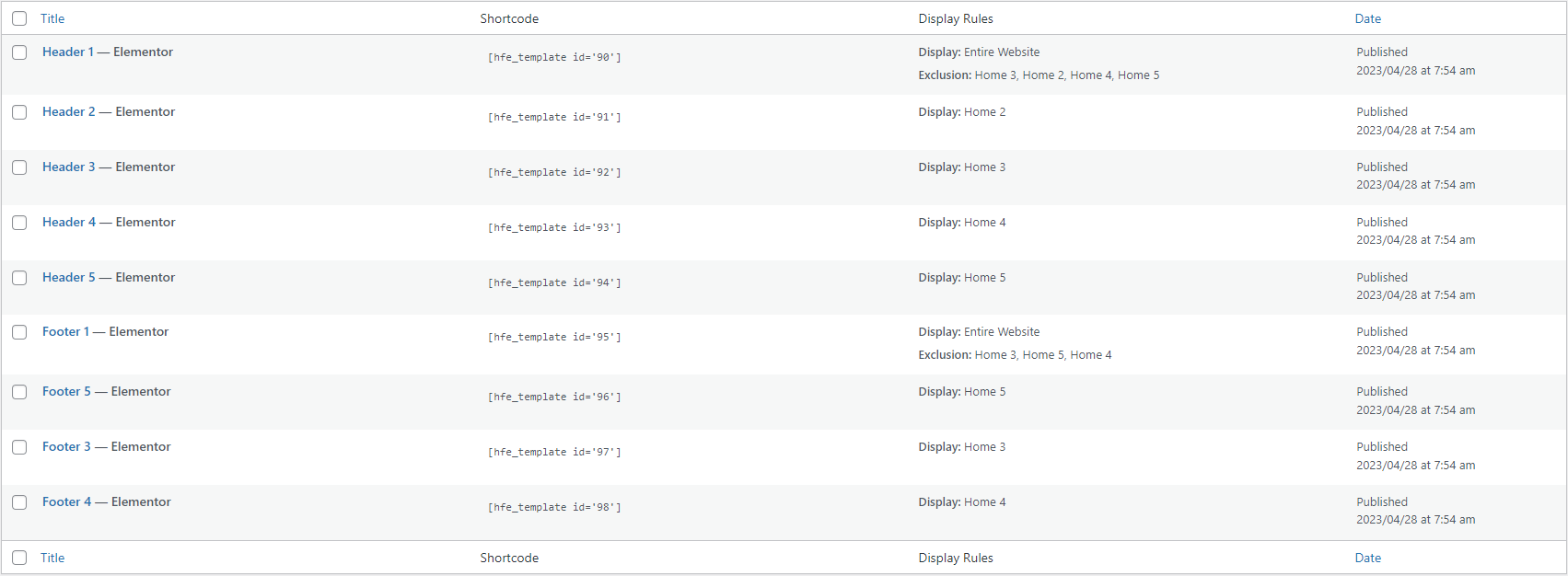
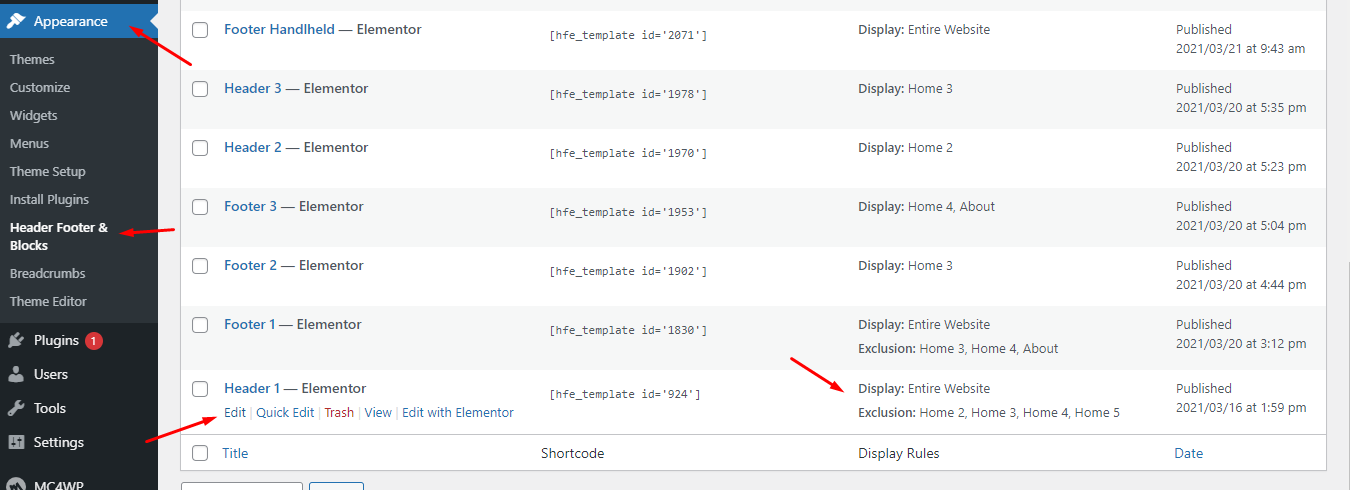
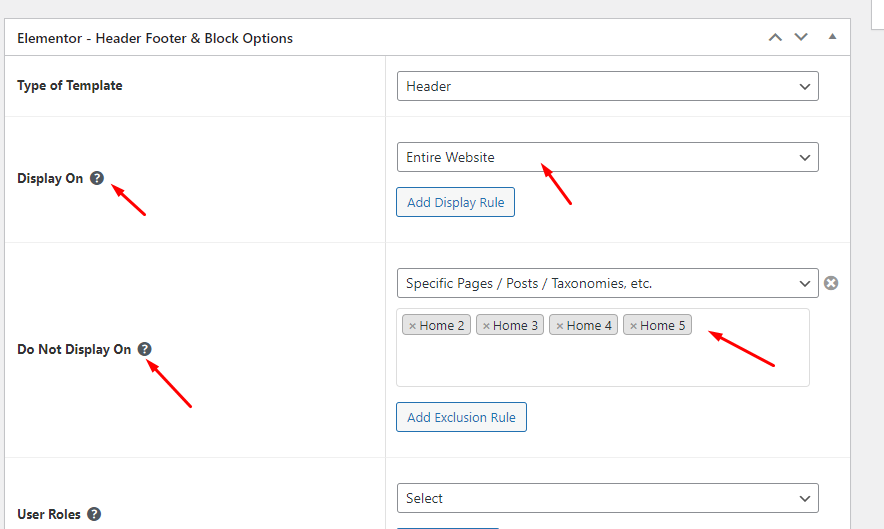
## How are Conditions Displayed?
* Choose tab Header Footer & Block and you can add the template that has been created to the page.
* Edit the display of your Header Footer & Blocks Template that can add the created template to the page.
Click SAVE & CLOSE
You can always click on **Display conditions** to add, change or remove conditions.

Click SAVE & CLOSE